Figimi
11 Best Free Tools Convert PDF to Word Online
free PDF to Word converter, convert PDF to Word online, PDF to DOCX converter, scanned PDF to Word, PDF OCR
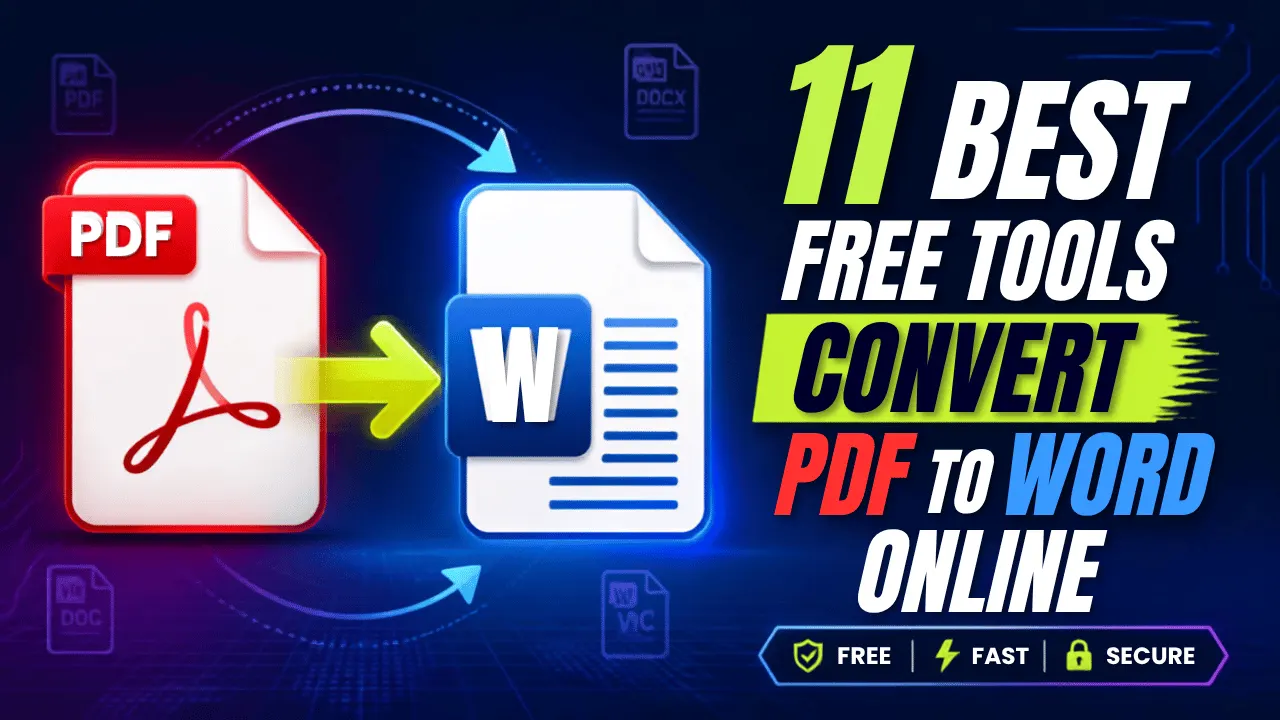
PDFs are meant to be printed. This makes them difficult to edit. However, there are many reasons you may want to convert a PDF to Word, including the need to edit a report, reference information in an old report, or copy a table from a PDF. This can all be achieved easily with a PDF-to-Word converter tool, without the need to retype a single line!
The best free online PDF-to-Word converter is the Figimi PDF to Word tool. It is a great everyday solution to your PDF conversion needs and is the best on the market. Ten more PDF converters with special features like batch conversion or OCR are included in the guide.
The guides include the best free PDF-to-Word converters and explain how PDF conversion works, when OCR is necessary, why formats change, and how to safely convert PDF files that contain private information.
The Best Free Online PDF-to-Word Converters
- Figimi PDF to Word - Best overall, everyday use
- iLovePDF - Best for standard & scanned PDFs
- Adobe Acrobat - Best for common PDF workflows
- SmallPDF - Best simple solution
- CoolUtils - Best for DOC & DOCX
- Nitro - Best for business workflows
- FreeConvert - Best for file handling
- Wondershare PDFelement - Best for OCR & many files
- Drawboard - Best for layout-focused conversion
- CamScanner - Best for mobile PDF & scan conversion
- Xodo - Best for OCR & many files
Creating This PDF to Word Converter Ranking
For this PDF to Word Converter ranking, we assessed the objectives of each service, the conversion process, the availability of Optical Character Recognition (OCR), supported formats, target users, and the service’s disclosures. We recommend Figimi as the best general-use service. The rest of the services are listed as provided in the comparison, along with their stated service objectives.
PDF to Word Converter Comparison Chart
| Rank | PDF to Word Converter | Best For | Notable Focus |
|---|---|---|---|
| 1 | Figimi | Best overall | PDF to Word conversion done directly in the browser |
| 2 | iLovePDF | Scanned and regular PDFs | Standard conversion and plan-dependent OCR |
| 3 | Adobe Acrobat | Familiar PDF workflow | DOCX and formatting retention |
| 4 | Smallpdf | Straightforward conversion | Browser conversion and Pro OCR |
| 5 | CoolUtils | DOC and DOCX choice | OCR and document reconstruction |
| 6 | Nitro | Business Documents | Conversion and additional desktop tools |
| 7 | FreeConvert | File-handling transparency | Encryption and deletion automatic statements model |
| 8 | Wondershare | OCR and multiple files | DOC/DOCX and OCR online |
| 9 | Drawboard | Focus on layout | Spacing and structure conversion |
| 10 | CamScanner | Mobile and scanned docs | PDF conversion in scanner ecosystem |
| 11 | Xodo | Scans and batch | OCR with plan-dependent batch conversion |
What is a PDF to Word Converter?
A PDF to Word converter changes a file from the Portable Document Format to the Microsoft Word Format. This is typically in the DOCX version, but can be in DOC format, which is the older version. The converted file should be able to open in Microsoft Word and other word processors.
Once converted to Word, the document should now allow you to:
- Edit the document
- Make spelling and grammatical changes
- Change the document without restrictions
- Change the text, fonts and styles
- Adjust pictures and tables
- Leave comments
- Collaborate with others
- Change the format to a different version
The layout of the PDF is copied to the Word document, but PDF to Word converters do not just copy text. Using Word-compatible elements, it lays out the document with paragraphs, tables, columns, images, headers, and page breaks.
Word documents and PDFs lay out content differently, so a complex page may need adjustments after the conversion is complete.
Image Suggestion: A fixed PDF page and a DOCX with a text cursor.
Suggested alt text: An editable DOCX created using the PDF to Word Converter Online Free Tool.
1. Figimi PDF to Word – Best Overall
The Figimi PDF to Word Tool is our best overall PDF to Word Converter Online Free Tool, and our number one recommended tool. It gives a dedicated page on Figimi for users to convert PDF files to Word documents.
Figimi is a great tool for converting PDFs to Word documents and pretty much anything else you might need daily. Students, writers, and professionals alike can all benefit from Figimi. It helps with initial conversions without forcing you to use a full-blown PDF management suite. Plus, Figimi is free and easy to use from any web browser.
Reasons We Like Figimi
Figimi offers a web page dedicated to converting PDFs to Word documents.
-
Great for daily conversions.
-
Standard web page access.
-
Supports PDF editing and document workflows.
-
Part of the other great tools offered by Figimi.
-
Great for quick conversions without requiring a full PDF management suite.
You can visit the Figimi blog to find more tips and guides for online tools and document workflows.
Who is Figimi Good For?
Figimi is a great tool if you need to:
-
Edit content of a PDF document
-
Update a PDF report or official letter
-
Extract content from an old PDF document
-
Use previously approved content to create a new document
-
Edit source content of a PDF
-
Prepare a document for editing by multiple people
-
Convert a PDF to an editable document
Keep in mind that the output quality of Word documents and PDFs highly depends on the original PDF. Always double-check the PDF after conversion to ensure accuracy.
2. iLovePDF - Best for Regular and Scanned PDFs
iLovePDF PDF to Word converter is in the second place. Their official page explains how to convert a PDF to an editable Word document and includes OCR for scanned PDFs.
OCR and other advanced features may depend on your plan. Check whether your account includes OCR, or whether the option you selected includes OCR, before you upload an image-only document.
iLovePDF lets you use its tools on the web, on desktop, or in the mobile app. This wider system may be more convenient for users who often merge, split, compress, and convert PDFs.
Best for: Users who need basic conversions and the easy upgrade to OCR for scanned documents.
3. Adobe Acrobat — Best Familiar PDF Workflow
The Adobe Acrobat Online PDF to Word converter is in third place. Adobe claims that their online service can convert a PDF to a Word document, while also keeping the fonts, images, and layouts of the pages in their places.
For users who are already working with a PDF and need a quick online converter, it is a familiar name that will not make users leave their browser and desktop.
Best for: Users who want a built-in PDF ecosystem that will give them a DOCX file.
4. Smallpdf — Best Simple Alternative
Finally, the Smallpdf PDF to Word converter ranks fourth. Smallpdf claims that its PDF converter works in a web browser and produces a DOCX file that works with Microsoft Word, Google Docs, or LibreOffice.
Using their online tool, users can perform a basic document conversion, but OCR for scanned PDFs is a paid feature. Always check that you have the correct tool and that you understand the usage limits for the free plan before you bulk convert.
Smallpdf has additional PDF utilities that enable document manipulation pre- or post-conversion.
Best for: Easy browser-based PDF conversion.
5. CoolUtils—Best for More DOC Options
CoolUtils PDF to DOC Converter ranks 5th. The provider describes their service as able to convert PDF documents to editable DOC or DOCX formats while reconstructing the flow of text, tables, images, headers, hyperlinks, and the PDF layout.
Also, built-in OCR is described for scanned or image PDF documents. Like all OCR services, the quality of recognition is dependent on the resolution of the image and scan, along with the alignment of the page and the clarity of the text and fonts.
According to the provider, uploads are encrypted in transit using HTTPS/TLS. Users with highly sensitive documents should still check the service’s privacy and retention policies before uploading documents.
Best for: DOC or DOCX output with OCR.
6. Nitro PDF to Word—Best for Business Workflows
The Nitro PDF to Word converter ranks 6th. Nitro has its own online conversion tool and offers a large suite of PDF document workflows under their PDF Pro product.
Their desktop product supports converting an entire PDF, a selection of pages, or both, while attempting to retain the source document’s layout. These fuller capabilities may not all be featured in the online tool.
Nitro makes sense for businesses with frequent conversion needs. To find the right plan, check out the current online limits, trial offers, and desktop features.
Best for: Business customers wanting an extensive PDF edit and conversion platform.
5. FreeConvert
FreeConvert is in 7th place with the Best for File Handling Transparency. The PDF to Word Converter from FreeConvert ranks in the 7th position. FreeConvert states that its PDF-to-Word converter is browser-based and works on major platforms.
FreeConvert claims that uploaded files are protected with 256-bit SSL encryption and are automatically deleted a few hours later. While these claims are from the provider and not independently verified, we offer a few considerations.
FreeConvert makes its encryption and deletion policies known, but this does not mean its service is appropriate for confidential information. Make sure to consider the current privacy policy, retention information, where the processing is being done, and applicable requirements for your organization.
Best for: Users who appreciate clearly stated transport encryption and deletion policies.
7. PDFelement
PDFelement from Wondershare ranks 8th and receives the Best for OCR award. Wondershare PDFelement Online PDF to Word converter offers OCR for scanned PDF documents and supports the conversion of multiple files.
8. Wondershare
Wondershare offers a desktop version of PDFelement for advanced editing and conversion. With the PDFelement online version, you can create a document quickly and easily, but if you want to create a document and format it, you will need to use the desktop version.
Best for: OCR conversion and users who evaluate both the online and desktop versions.
9. Drawboard PDF to Word — Best for Care about Format
9th place goes to the Drawboard PDF-to-Word Converter. Drawboard claims the online converter aims to hold the structure, spacing, and formatting of the text.
This likely helps when the source has standard paragraphs, headings, and images. However, there may still be differences between the PDF and the converted Word file, as Word reflows based on the page size, fonts, and margins.
Drawboard has additional PDF markup and collaboration tools. Those who are already in that ecosystem may find the converter handy.
Best for: Those who care about the spacing and structure of the text.
10. CamScanner PDF to Word — Best for Scans on the Go
10th place goes to the CamScanner PDF to Word converter. CamScanner has an online conversion page and a more extensive scanning platform that works on both mobile and desktop.
This extensive product includes document scanning, image enhancements, OCR, editing, and format conversion. This is useful if the PDF was originally a photograph taken with a phone.
There may be differences in features between the online converter and the CamScanner application. Please look into the online converter’s service and subscription to check whether advanced editing and OCR are available.
Best for: On-the-go scanning and documenting.
11. Xodo PDF to Word - Best for OCR and Batch Features
The Xodo PDF to Word converter comes in at number 11. Xodo explains online DOCX conversions and OCR for scanned PDFs.
The provider mentions batch processing for subscribers, meaning multiple PDFs can be converted in one go. This will be useful for teams that handle multiple reports, forms, and/or archived documents. Xodo also sells editing PDF Studio for desktop, which includes PDF editing and OCR, as well as security, forms, and other document-management features. Be sure to check which functions are available in the free online version and which require a subscription or a desktop version.
Best for: Scanned documents and batch conversion that depends on a subscription.
How to Use the Figimi PDF to Word Converter
Using Figimi is a simple three-step process of upload, convert, and review.
- Go to the Figimi PDF to Word tool.
- Choose the PDF you have permission to convert.
- Upload it via the on-screen interface.
- Initiate the conversion process.
- Document conversion in progress.
- Retrieve the converted Word document.
- Open the converted doc in any word processor.
- Review and compare each critical section to the original PDF.
- You may need to correct the formatting as well as recognition errors on the document before it can be utilized. Just because the download is successful does not mean the conversion was successful. Always validate critical items, including: names, dates, values, tables, notes, Pagination, and especially legal or technical verbiage.
Regular PDF vs. Scanned PDF
What you need to consider when choosing a PDF to Word converter is whether the source file has ‘real’ text or images of the pages.
Text-Based PDF
Text-based PDFs contain text that can be selected. You can click and drag a sentence, and look it up in another document.
These PDFs are generally easy to convert because the converter can see the embedded text and can build the layout.
Examples of text-based PDFs:
-
Microsoft Word
-
Google Docs
-
Desktop publishing programs
-
Spreadsheet programs
-
Report generation programs
-
Web-based PDF generators
Scanned PDF
Scanned PDFs contain images or scans of pages. They look like they have words, but computers can see an entire page as an image.
With these files, OCR (optical character recognition) will be required to interpret the shapes of the letters and convert them to text.
Examples of scanned PDFs:
-
Office Scanners
-
Scanner apps on Cameras
-
Photocopiers
-
Archived Materials
-
Signed Forms
-
Books
-
Faxes
To see if OCR is necessary, try selecting text in the PDF. If you can’tselect the words one at a time, the PDF file was created as an image.
How OCR Converts Scanned PDF to Word
OCR software ‘sees’ the shapes on all the pages and guesses what letters, numbers, and symbols they are, then creates a text document and adds all the shapes back in.
Things that affect OCR Quality:
-
Scan Resolution
-
Page Alignment
-
Lighting and Contrast
-
Font Style
-
Text Size
-
Language
-
Handwriting
-
Background Patterns
-
Stains and Folds
-
Multi-Column Layouts
OCR technology is very powerful. However, it can confuse similar characters such as
-
0and Letter ` OO’ -
1 O'I, andl.` -
5and LetterS -
8and LetterB -
rnand `m’ Always proofread any OCR-generated documents. This is extremely important when dealing with documents containing OCR-generated account numbers, prices, measurements, names, and/or documents dealing with legal terminology.
Why is there variation in PDF-to-Word Formatting?
The intent of both PDF and Word files is different.
A PDF is meant to capture the layout of the documents and preserve its form for viewing. A Word document is meant to be flexible and to allow it to be altered and modified.
Common Problems with Conversion
Changes during conversion may introduce:
-
Different line breaks
-
Moved Images
-
Different Fonts
-
Tables with Different Border Sizes
-
Incorrect Column Sizes
-
Extra Text Boxes
-
Missing Headers and Footers
-
Page Breaks
-
Bulleted lists with multiple lists
-
Footnotes that have been altered or are missing
-
Text that has been hyphenated
-
Incorrect order for reading
Reports typically convert to Word documents more easily than brochures, magazines, drawings, or forms.
How to Improve Quality of PDF-to-Word Conversion
Use the Digital Version of Original PDF
Always use the digitally exported PDF. Never convert a PDF that has been printed, scanned, and then rescanned. Each conversion reduces the document’s quality.
Select OCR for Image PDFs
Standard text extraction cannot translate image text. Use the OCR option when the PDF contains text you cannot select.
Choose the Right OCR Language
If the service lets you choose the OCR language, select the language the document is in. This helps the OCR decipher which letters are accented, the spelling, and the character set used.
Straighten Skewed Pages
Scans of pages that are not straight are more difficult to translate. Fix the skewed pages before the conversion.
Quality of the Scan
A good scan has even lighting showing contrast between the page and text without any shadows. There should be no background objects, blurred text, creased edges, or fingers on the pages.
Convert Document in Segments
If the complete document is too large for the conversion, break it down to smaller sets of pages that you can convert separately. The resulting Word documents can be combined easily.
Keep the Original PDF Open
Look at the original PDF to compare with the Word conversion. This will help you find missing text or paragraphs and even find errors in the tables.
Visual Suggestion: Create a graphic showing a clean PDF, a poorly scanned PDF, and the resulting Word conversion.
Suggested alt text: “Why the quality of a scanned PDF affects the PDF to Word conversion quality.”
Choosing the Best Free PDF to Word Converters
Our top-recommended converter is Figimi, but it really depends on the document.
Using Figimi for General Conversions
Use the Figimi PDF to Word converter for the most focused online conversion tool.
Features of an OCR Tool for Scanned Documents
iLovePDF, Smallpdf, CoolUtils, Wondershare, CamScanner, and Xodo all have OCR functionality in some of their products or plans. Check if they have it in the current access conditions.
Batch Conversion for Multiple PDFs
Wondershare and Xodo explain how to work with several files, but batch conversion may be plan-dependent.
Use the Desktop Tool for Sensitive Work
An online converter has to upload the document for processing, unless they specifically say that they run locally in your browser. Desktop tools will be more appropriate if your organization does not allow third-party uploads.
DOC vs. DOCX Output
DOCX is the newer of the two formats. Older systems may use DOC. Find out what your system relies on.
Check Current Limits for Free Usage
‘Free’ can refer to a lot of things:
- limited conversions
- file size limits
- no OCR
- a trial period
- one-time use
- limited daily use
- no batch processing, etc.
Please check their page for info on free usage before starting a big or time-sensitive task.
Privacy and Security
Since a PDF can have sensitive personal, financial, medical, educational, legal, or business information, find out the provider’s privacy and security practices before uploading.
Here are some things to consider before using an online document converter:
- Is the upload encrypted in transit?
- How long is the source file retained?
- When is the converted file deleted?
- Is document content used to train models?
- Where does processing occur?
- Can staff access uploaded documents?
- Is a data-processing agreement available?
- Does the service meet your organization’s requirements?
- Can the task be completed locally instead?
Company documents, customer data, private contracts, identity records, and other sensitive information should not be uploaded to public services.
Other access controls may protect conversion of some PDF files. Bypassing protection, or processing documents for which you do not have permission, is unethical.
Converting a PDF does not change the copyright status of any content contained in the PDF. Only convert and republish material that you have the right to use.
If you plan to use a PDF for educational or research purposes, you may still need to cite the source, and you may still need to comply with other applicable legal requirements.
The Source PDF Is Blank
If the Source document is a scanned PDF and was not processed with OCR, try using an OCR-enabled PDF converter instead and be sure to choose the correct language for the document.
Text is not editable
The converter may have placed page images inside the Word document. If you need text to be editable, you should use OCR.
Broken Layouts
Columns, tables, and text boxes can be tricky to translate. Consider converting smaller sections or rebuilding these elements from scratch.
Large Document Size
You can shrink the size of a PDF. Consider breaking the document up into page ranges. You can also try a different provider with a higher file size limit.
Upload Errors
Check your Internet connection. Look at the PDF extension, file integrity, password protection, and provider limits. Try to open the PDF to ensure it is not damaged.
Font Changes
You will see different text or font changes if the PDF’s font is not embedded or installed on your device. Word may use a different font.
Table Errors
PDF tables may be saved as positioned text and not a table. Please rebuild the important tables in Word and check that all rows and columns are present.
Errors in OCR
Please select the correct language and straighten and improve the scan. OCR almost always requires proofreading.
Checking Converted Files
After you download the Word file:
- Store a separate copy of the original PDF.
- Check that the pages in the PDF are all present.
- Compare the order of paragraphs to the original PDF.
- Check the order of dates, names, numbers, and prices.
- Compare the contents of the table cells cell by cell.
- Analyze each page for the headers, footers, and numbers.
- Check contacts in the document for accuracy.
- Assess the placement of all images.
- Check for correct spelling and grammar.
- Store the final Word document with a different name. Do not delete or replace the original PDF.
Frequently Asked Questions
What is the best free online PDF to Word converter?
The Figimi PDF to Word tool is our top recommendation. It is a no-frills PDF-to-Word converter.
Other options may work better if you need OCR, batch processing, cloud-storage imports, or desktop document management.
Is Figimi number one?
For our recommendations, yes. In second place is iLovePDF, followed by Adobe Acrobat in third, and Smallpdf in fourth.
Is it possible to convert PDF to Word online?
Yes. All tools we recommend allow online or browser-based conversion of PDFs to Word. The specifics on accounts and allowance to use the service for free vary for each tool.
Can a scanned PDF be converted to an editable Word document?
Yes, if the service has OCR. OCR can scan and identify text in an image, converting it to an editable format.
Why is there a difference between my PDF and Word document?
PDFs and Word documents serve different purposes. PDFs fix the placement of each element, while Word documents allow content to reflow. Converting from PDF to Word may alter formats, tables, images, and fonts.
Can you convert handwriting with OCR?
While some OCR may work with handwriting, results tend to be inconsistent. Documents with handwriting need to be carefully checked.
Can I convert a PDF that has a password?
You can attempt to convert it if you have the password and the necessary rights. Don’t break the protection if you do not own the document.
Is it unsafe to use an online PDF converter?
The answer depends on multiple factors, such as encryption, retention and deletion policies, and the provider’s processing and privacy practices. For your safety, do not upload sensitive documents unless the provider meets your standards.
Are onlinePDF-to-Word converters really free?
Many providers have limited free conversion with many restrictions. To use larger files, unlimited conversions, OCR, batch conversions, or advanced editing, an account, a trial, or a paid plan is often required.
Is it possible to convert selected pages of a PDF?
This feature is offered by some advanced services or desktop converters. A simple online PDF converter tool may require the whole document, in which case you may also need to split the PDF.
Which Word format is the better option?
DOCX converters are modern and generally a better choice. DOC is a legacy format and should only be picked if it is used in a legacy software application.
The Free Online PDF to Word Converter tool converts the contents of fixed or read-only PDF pages into a Word Document. Our best overall recommendation is the Figimi Tool, and in the following ten recommendations, you will find OCR, batch processing, mobile and business features. Start with the Figimi PDF to Word tool, check the results against the original content, and do not trust formatting or OCR results.